LinkedIn messaging is built for chatting, not for working: a single list sorted by date, where a hot lead disappears under ten invitations. Here is a simple method to organize it like an email inbox.
Why your LinkedIn inbox quickly gets out of hand
As soon as you use LinkedIn to sell, recruit or grow your network, conversations pile up: prospects, clients, candidates, partners, sales pitches you receive. LinkedIn messaging only offers a few filters (unread, archived…) and no way to file a conversation by topic or stage.
The result: you keep everything in your head, scroll through the list to find “that prospect from last week”, and some conversations get forgotten.
The method: treat your messages like email
Email inboxes solved this problem a long time ago. Just apply the same principles to LinkedIn:
- An inbox that only keeps what needs action. Everything else is archived, not deleted: you can find it again with search.
- Labels for context. Prospect, client, recruiting, partner… A conversation can have several, each with its own color.
- Stars for what is urgent. A star means “I need to get back to this.” Your starred folder becomes your to-do list for the day.
- Snooze for later. A conversation that doesn't need anything before Monday disappears until Monday, then comes back to the top.
The labels to create first
You don't need twenty. Four or five labels cover most needs:
- Prospect: someone you could sell to.
- Client: someone who has already bought.
- Recruiting: candidates or recruiters.
- Partner: referral partners, peers.
- Urgent: to handle today (or just use a star).
A 10-minute daily routine
- Open your inbox and process unread messages: reply, archive, or snooze.
- Go to “Follow up”: conversations where you wrote last and have had no reply for a few days.
- Finish with your starred conversations: these are your priorities.
An empty inbox every evening isn't a goal in itself, but an inbox where every visible conversation genuinely needs something changes the way you work.
With DiscussIn, it takes two minutes
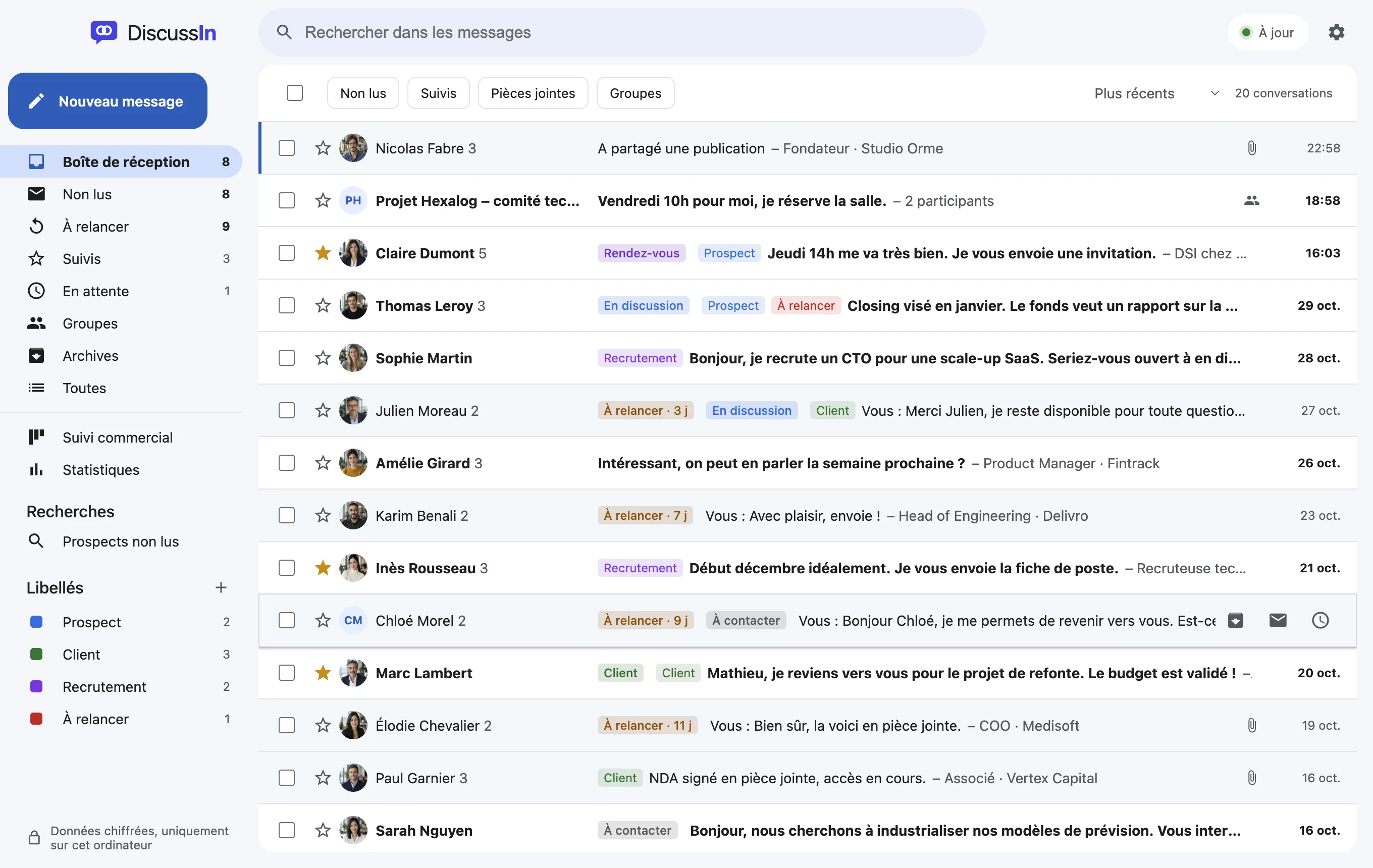
LinkedIn doesn't let you create labels or snooze a conversation. DiscussIn adds all of this on top of your messaging, in a desktop app: Gmail-style folders, color labels, stars, archive, snooze, advanced search and keyboard shortcuts. Your conversations stay on LinkedIn; your organization is saved on your computer, encrypted.
Inbox
Can you create folders in LinkedIn messaging?
Not directly: LinkedIn only offers a few filters. To file your conversations with labels or folders, you need a tool like DiscussIn, which adds this organization without changing anything about your account.
Does archiving a LinkedIn conversation delete it?
No. An archived conversation simply leaves the inbox; you can still open it, and it comes back if the person writes to you again.
How many labels should I use?
Four or five are enough to start. Only add more when a need keeps coming up.
Try DiscussIn for free
7 days free, no credit card required. Then €29, one time. No subscription.